- You’ll build
- Image Zoom Hover Effect in WordPress
- Code required
- HTML + CSS
- Installation
- Theme and role dependent
On this page
Before you startHow the zoom worksInstall a new image frameAdapt an existing Image blockCustomize the lookTroubleshoot the effectAccessibility and performanceFrequently asked questionsCheck your installationComplete working code
The preview and download are generated from these same source files. The complete snippet requires permission to save inline styles and scripts.
<figure class="iljs-demo iljs-zoom"><div class="iljs-zoom-frame"><img src="data:image/svg+xml,%3Csvg%20xmlns%3D%22http%3A//www.w3.org/2000/svg%22%20width%3D%22800%22%20height%3D%22500%22%20viewBox%3D%220%200%20800%20500%22%3E%3Cdefs%3E%3ClinearGradient%20id%3D%22g%22%20x2%3D%221%22%20y2%3D%221%22%3E%3Cstop%20stop-color%3D%22%23dcb9ff%22/%3E%3Cstop%20offset%3D%221%22%20stop-color%3D%22%236634b0%22/%3E%3C/linearGradient%3E%3C/defs%3E%3Crect%20width%3D%22800%22%20height%3D%22500%22%20fill%3D%22url%28%23g%29%22/%3E%3Ccircle%20cx%3D%22570%22%20cy%3D%22185%22%20r%3D%22110%22%20fill%3D%22%23e8d7ff%22/%3E%3Cpath%20d%3D%22M0%20425%20250%20140%20485%20500H0%22%20fill%3D%22%2334214f%22/%3E%3Cpath%20d%3D%22m270%20500%20225-260%20305%20260%22%20fill%3D%22%23ae80e1%22/%3E%3Ccircle%20cx%3D%22120%22%20cy%3D%22110%22%20r%3D%2235%22%20fill%3D%22%23fff%22%20opacity%3D%22.6%22/%3E%3C/svg%3E" width="800" height="500" alt="Purple geometric composition with circles and angular shapes"/></div><figcaption>A closer look at the little details.</figcaption></figure>
/* Change the values here, keeping the iljs- prefix to avoid theme conflicts. */
.iljs-demo { --iljs-accent:#9235f6; --iljs-radius:18px; font-family:system-ui,sans-serif; color:#242038; width:min(620px,100%); margin:auto; }
.iljs-demo button,.iljs-demo a { font:inherit; }
.iljs-demo button:focus-visible,.iljs-demo a:focus-visible,.iljs-demo input:focus-visible,.iljs-demo summary:focus-visible { outline:3px solid #c491ff; outline-offset:4px; }
.iljs-zoom { --iljs-scale:1.08;max-width:460px; }
.iljs-zoom-frame { overflow:hidden;border-radius:var(--iljs-radius);background:#ead9ff; }
.iljs-zoom img { display:block;width:100%;height:auto;transition:transform .5s ease; }
@media(hover:hover){.iljs-zoom:hover img{transform:scale(var(--iljs-scale))}}
.iljs-zoom figcaption { font-size:12px;color:#72677e;margin-top:16px;text-align:center; }
@media(prefers-reduced-motion:reduce){.iljs-zoom img{transition:none}.iljs-zoom:hover img{transform:none}}
<figure class="iljs-demo iljs-zoom"><div class="iljs-zoom-frame"><img src="data:image/svg+xml,%3Csvg%20xmlns%3D%22http%3A//www.w3.org/2000/svg%22%20width%3D%22800%22%20height%3D%22500%22%20viewBox%3D%220%200%20800%20500%22%3E%3Cdefs%3E%3ClinearGradient%20id%3D%22g%22%20x2%3D%221%22%20y2%3D%221%22%3E%3Cstop%20stop-color%3D%22%23dcb9ff%22/%3E%3Cstop%20offset%3D%221%22%20stop-color%3D%22%236634b0%22/%3E%3C/linearGradient%3E%3C/defs%3E%3Crect%20width%3D%22800%22%20height%3D%22500%22%20fill%3D%22url%28%23g%29%22/%3E%3Ccircle%20cx%3D%22570%22%20cy%3D%22185%22%20r%3D%22110%22%20fill%3D%22%23e8d7ff%22/%3E%3Cpath%20d%3D%22M0%20425%20250%20140%20485%20500H0%22%20fill%3D%22%2334214f%22/%3E%3Cpath%20d%3D%22m270%20500%20225-260%20305%20260%22%20fill%3D%22%23ae80e1%22/%3E%3Ccircle%20cx%3D%22120%22%20cy%3D%22110%22%20r%3D%2235%22%20fill%3D%22%23fff%22%20opacity%3D%22.6%22/%3E%3C/svg%3E" width="800" height="500" alt="Purple geometric composition with circles and angular shapes"/></div><figcaption>A closer look at the little details.</figcaption></figure>

<style>
/* Change the values here, keeping the iljs- prefix to avoid theme conflicts. */
.iljs-demo { --iljs-accent:#9235f6; --iljs-radius:18px; font-family:system-ui,sans-serif; color:#242038; width:min(620px,100%); margin:auto; }
.iljs-demo button,.iljs-demo a { font:inherit; }
.iljs-demo button:focus-visible,.iljs-demo a:focus-visible,.iljs-demo input:focus-visible,.iljs-demo summary:focus-visible { outline:3px solid #c491ff; outline-offset:4px; }
.iljs-zoom { --iljs-scale:1.08;max-width:460px; }
.iljs-zoom-frame { overflow:hidden;border-radius:var(--iljs-radius);background:#ead9ff; }
.iljs-zoom img { display:block;width:100%;height:auto;transition:transform .5s ease; }
@media(hover:hover){.iljs-zoom:hover img{transform:scale(var(--iljs-scale))}}
.iljs-zoom figcaption { font-size:12px;color:#72677e;margin-top:16px;text-align:center; }
@media(prefers-reduced-motion:reduce){.iljs-zoom img{transition:none}.iljs-zoom:hover img{transform:none}}


</style>Before you start
The downloadable example contains an original geometric SVG embedded as an image data URL. Replace it with your own WordPress Media Library image before publishing, using a meaningful alternative description. This effect needs HTML and CSS only. If you already have an Image block, you can often adapt its class instead of adding a second copy of the picture. See how to set WordPress block classes first.
How the zoom works
The .iljs-zoom-frame wrapper clips anything outside its rounded boundary. The image remains a normal block element with width: 100% and height: auto, so it keeps its aspect ratio as the available width changes. Hovering scales that image with a transform. A transform changes its painted size without asking surrounding text to reflow.
The default --iljs-scale is 1.08, or an eight-percent enlargement. That is enough to create a visible change without cropping away most of the subject. The half-second transition softens the movement. The @media (hover: hover) rule limits the effect to devices that report hover support, avoiding a sticky hover state as a primary interaction on many touch devices.
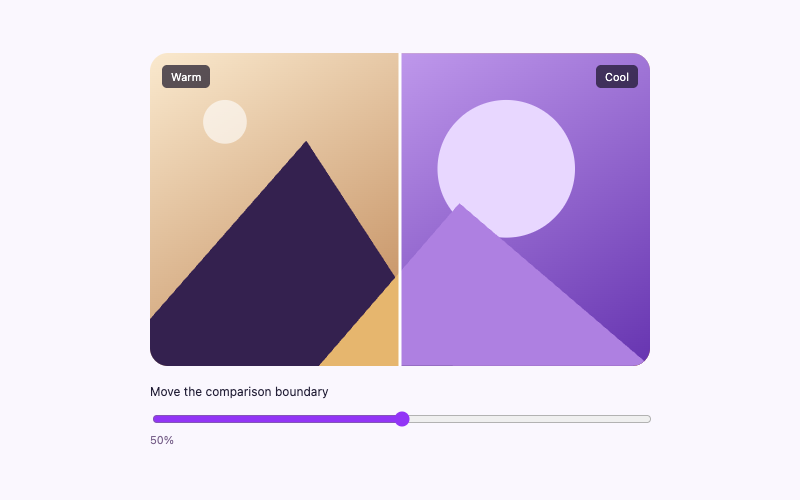
The reduced-motion rule removes the transition and suppresses the scale change. The image itself remains visible. No JavaScript observes the pointer, resizes the photo, or repeatedly calculates coordinates. If you want actual image comparison rather than decoration, use the before-and-after slider instead.
Install a new image frame
- Upload your image to the Media Library and note its URL, width, and height. Choose an appropriately sized file, rather than a huge camera original for a small card.
- Insert a Custom HTML block in a draft page. Paste the HTML fragment, then replace
srcwith your media URL. - Replace
altwith a useful description of your image. If the image is purely decorative and its meaning is already present in nearby text, use an empty alternative rather than unrelated keywords. - Update the width and height attributes to match the source image’s ratio. Install the scoped CSS through the WordPress custom CSS guide.
- Preview the published layout. Hover the image with a mouse and check that its edge stays inside the frame. Check the same image on a narrow touch layout.
Block and classic themes can use the page-level fragment when the markup is permitted. Elementor can use an HTML widget or adapt its image widget wrapper with equivalent scoped selectors. Restricted roles may remove inline styles in a combined block; the separate HTML and approved stylesheet route avoids assuming every account accepts an embedded style element.
Adapt an existing Image block
Select the Image block and open its Advanced settings. Add iljs-zoom to Additional CSS Class(es), without a leading dot. The actual front-end markup may differ from the snippet, so inspect whether the class appears on the figure or a wrapper. Add an overflow-hidden clipping rule to the appropriate figure or wrapper and target its descendant image.
Do not paste a global img:hover rule. That would animate logos, icons, gallery images, and unrelated content across the site. If your theme already uses a transform on the image, this effect may overwrite it; combine the transformations deliberately or target a wrapper instead. An existing image that links elsewhere should keep its link semantics and visible keyboard focus.
The markup approach shown above is more predictable because it includes the explicit .iljs-zoom-frame wrapper. It also keeps the caption outside the clipped region. If you modify a native block, keep WordPress’s caption and responsive image behavior rather than rebuilding them unnecessarily.
Customize the look
Increase --iljs-scale modestly for tighter cropping, or reduce it toward 1.03 for a quieter change. Change --iljs-radius to control the frame corners. Adjust the figure’s max-width: 460px to fit your layout. The image should still use width: 100% so it can shrink below that maximum.
For images with a face or text near an edge, test the crop carefully. You may need a smaller scale, a different crop, or an object-position adjustment if you also introduce a fixed-height image frame. This original example intentionally avoids a fixed image height, reducing that extra complexity.
A click-through image should point to a real destination. A nearby gradient call-to-action button may communicate the next step more clearly than making every decorative picture a link.
Troubleshoot the effect
The picture grows outside its card. The image needs an ancestor with overflow: hidden. Confirm that .iljs-zoom-frame survived the copy and that your custom block selector points to the clipping wrapper.
Nothing happens on my phone. That is expected for a decorative hover effect. Touch devices should receive the normal image. Do not put essential information in a hover-only caption or control.
The image looks blurry during zoom. Its source may be too small for the displayed size and scale. Use a suitable responsive image variant, but balance sharpness against download size. Scaling cannot create detail that is absent from the source.
Other pictures also animate. Your adaptation probably uses an overly broad selector. Restrict the rule to the unique class you assigned to this block. Our code installation guide explains keeping snippet styles separate from site-wide theme rules.
Accessibility and performance
The effect does not require focusable markup unless the image is already a link. Do not add tabindex to every decorative image merely to trigger an animation. Preserve useful alternative text and captions. Reduced-motion visitors receive the still image, and hover-limited devices keep all content visible.
Transforms often avoid layout work, but a large source image still costs network bandwidth and decoding time. Include dimensions to reserve layout space. Use WordPress’s generated responsive image markup when practical, and lazy-load images below the initial viewport. Do not lazy-load the main above-the-fold picture merely because it has an effect.
Frequently asked questions
Is JavaScript needed?
No. The wrapper, transform, and media queries provide the entire interaction. There is no JavaScript tab because no script is required.
Can it zoom on keyboard focus?
If the image is a meaningful link, you can apply the same transform when that link receives :focus-visible. Keep an obvious focus outline on the link and retain reduced-motion behavior. A noninteractive image does not need to become a keyboard stop.
Can I use it inside a gallery?
Yes, by assigning a scoped wrapper to each intended item. Test that the gallery’s existing lightbox or transforms still work. Do not overwrite its controls with a global image rule.
Check your installation
The image should enlarge inside its frame, the caption should remain still, and touch visitors should lose no information. Compare the original standalone file with your WordPress version if the theme’s markup changes the result.