How to Add HTML, CSS, and JavaScript to WordPress
Choose the right place for markup, scoped styles, and browser behavior in your WordPress editor, theme, and role.
Updated 2026-10-09HTML creates the structure, CSS changes its appearance, and JavaScript handles behavior. A snippet may need one, two, or all three. Before copying code, identify which files it supplies and whether the feature belongs to one page or the entire site. A browser demo proves that the example can run in a browser; it does not bypass your WordPress permissions.
Choose a safe starting point
For a page-level effect, use a draft page first. Keep a copy of the original snippet and change one setting at a time. Global header changes deserve a staging copy and a backup because multiple templates may depend on the same header. Avoid editing a parent theme file directly.
Download the standalone HTML and open it as a reference. Compare the structure and behavior with the version you install. If the download works but the WordPress version does not, investigate saving permissions, style overrides, missing script files, and caching before rewriting the effect.
Block editor and block themes
Add a Custom HTML block for supported page-level markup. Paste the HTML fragment rather than an entire document with a doctype, head, and body. Your theme already provides the document shell.
The official Custom HTML documentation describes separate HTML, CSS, and JavaScript panels starting in WordPress 7.0. The CSS and JavaScript panels require unfiltered_html. Users without that capability may have disallowed tags removed when saving. Multisite, hosting rules, and roles can change what is permitted.
For older or restricted setups, install CSS through an available theme Styles/Additional CSS interface, and use an administrator-approved method to load JavaScript. The CSS guide and JavaScript guide give those routes separately. Do not assume that a combined HTML/style/script block is universally accepted.
A block theme’s global header belongs to a Header template part, not a normal page. Use the block-theme replacement guide for that different task. Additional CSS can change an existing header’s appearance, but it cannot create or replace the header’s markup.
Classic themes
Page-level HTML can still go in a Custom HTML block when permitted. Many classic themes expose Appearance → Customize → Additional CSS. A child theme can enqueue a stylesheet and script using WordPress’s APIs. Use theme documentation for global hooks and template boundaries.
Do not paste a complete standalone page into header.php. A classic theme’s document shell includes WordPress hooks and theme wrappers that your browser example does not supply. The classic header guide explains why a supported integration is safer than an arbitrary replacement.
Elementor and restricted hosting
An Elementor HTML widget can hold permitted markup. Styling can come from a supported stylesheet or available CSS feature; feature availability depends on your setup. A global header requires a real Theme Builder header template, applicable feature access, and display conditions. An HTML widget inside an ordinary page does not replace the theme header.
WordPress.com and managed environments may restrict scripts, styles, or iframes by plan and permissions. If saving removes code, ask the administrator which installation path is supported. Do not evade a role restriction by repeatedly changing tag spelling. The Elementor guide covers its page and global workflows.
Verify the saved result
Inspect the front-end page after saving. Check that the intended HTML remains, the stylesheet loads, and any script is present. Test a phone-sized viewport, keyboard focus, and reduced motion. Clear only the relevant caches when confirming a style update.
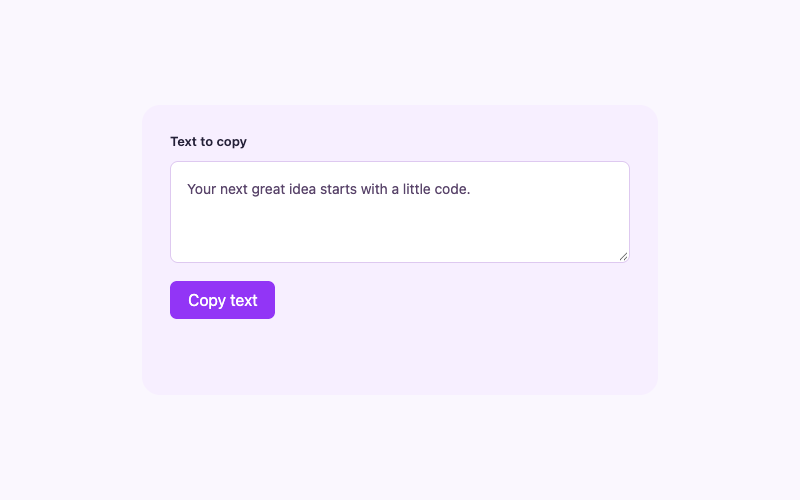
Start with a simple FAQ accordion if you want to learn the markup and CSS path without installing JavaScript. Then try the copy button to learn how browser permissions and honest feedback affect an interactive feature.
Keep a rollback path
Record where you installed each file. To remove the effect, remove its markup and corresponding scoped styles and script. Check whether a file serves another instance before deleting it. Keep your theme backup until any global change has been verified across its templates.
A useful snippet should coexist with the theme. Classes beginning with iljs- reduce accidental collisions, but they are not proof that every plugin combination works. Review the specific tutorial’s limitations and test the actual site you maintain.