How to Add Custom CSS to WordPress
Install scoped CSS through an available theme interface or a child-theme stylesheet, then verify selectors, overrides, and caching.
Updated 2026-10-09Custom CSS can restyle an existing block or support new snippet markup. It cannot create a full header structure, save a form submission, or supply a missing script. Begin by identifying the element you want to change and the exact class used by its tutorial.
Find the right CSS interface
In many classic themes, open Appearance → Customize → Additional CSS. This interface may not appear in every theme or account. In a block theme, inspect the Site Editor’s Styles options for an available Additional CSS interface. Screen labels and capabilities vary, so do not assume a screenshot from another version matches yours.
WordPress 7.0’s Custom HTML block can offer a CSS panel to users with unfiltered_html, as described in the official block documentation. Restricted accounts do not gain this capability simply because their page has a Custom HTML block.
If no approved interface is available, ask the administrator about a supported snippet method or a child-theme stylesheet. Elementor-specific CSS features depend on the installed product and feature access; a normal site stylesheet can still target permitted widget markup. See the Elementor guide for the distinction.
Paste CSS, not a document
A CSS field expects selectors and declarations. Do not include a doctype, HTML markup, or script. When copying from a combined snippet, remove the surrounding style tags for a CSS-only field. Keep them only when your chosen HTML installation path explicitly accepts embedded styles.
Paste the original rules first. Save and inspect the front-end page before customizing colors. The image zoom effect is a useful test because it needs no JavaScript and affects one wrapper. Confirm its clipping frame and hover state before changing the scale.
Assign the matching class
CSS selectors beginning with a dot target class names. The editor’s Additional CSS Class(es) field receives iljs-zoom, not .iljs-zoom. A class on a figure is different from a class on its inner image, so inspect the generated markup when adapting a snippet to an existing block.
Use the classes and IDs guide before renaming selectors. A unique wrapper helps avoid global declarations such as img:hover or button, which could alter unrelated content. Keep the iljs- prefix unless you have a deliberate reason to change every matching reference.
Child-theme stylesheet method
Developers can keep styles in a child theme and enqueue them through WordPress’s stylesheet APIs. Use a unique handle and an appropriate version value. Theme dependencies must match the actual parent’s registered styles; there is no universal parent handle that works in every theme.
Do not edit the parent stylesheet directly. Updates can replace it, and a broad edit may affect other layouts unexpectedly. Refer to WordPress’s stylesheet guidance and the parent theme’s documentation for the integration it expects.
Diagnose overrides and caching
If your rule does not apply, inspect the front-end element in the browser’s Styles panel. First confirm the selector matches. Then identify whether another rule wins through specificity, source order, an inline declaration, or !important. Increase specificity only as much as the local component needs.
Do not solve every conflict by adding !important to every declaration. That can make later customization harder and hide the real selector problem. If CSS changes seem absent, inspect the loaded stylesheet and clear relevant page or asset caches. Compare a logged-out preview when the editor or admin toolbar changes the layout.
Check responsive and motion rules
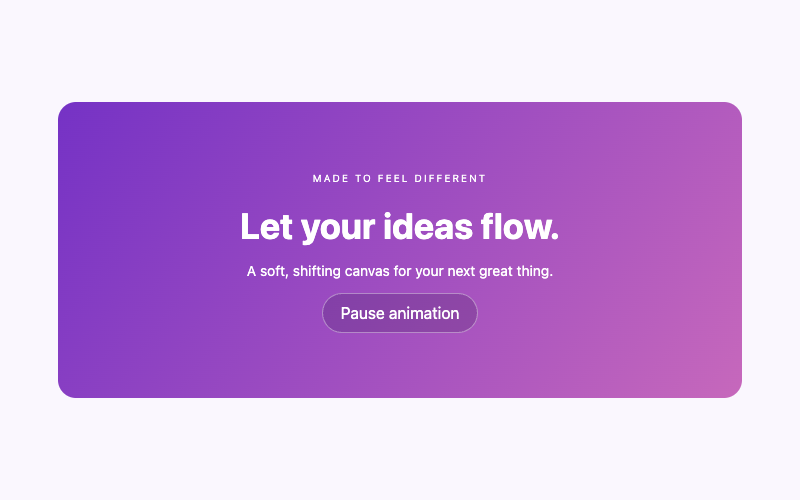
Keep media queries with the snippet they support. A navigation breakpoint needs its mobile visibility rules, and a gradient needs its reduced-motion fallback. Test the responsive menu with its longest real labels, not only short demonstration text.
Check the page at a narrow width, with keyboard focus visible, and with reduced motion enabled. Avoid horizontal overflow, fixed heights that clip text, and colors that fail against the theme’s real background. Scoped CSS reduces interference; actual testing confirms whether your integration behaves as intended.