How to Replace a WordPress Block-Theme Header
Edit the actual Header template part, preserve a rollback path, and verify every template instead of adding duplicate page-level markup.
Updated 2026-10-09A block theme’s header is normally a reusable template part referenced by page templates. Replacing it means editing that shared part or deliberately changing template references. Pasting a new header into a page’s content adds another section; it does not remove the theme’s original navigation.
Confirm the theme and access
The official Site Editor guide explains that this editor requires a block theme. Open Appearance → Editor and locate Patterns or the available template-part management interface. Labels can vary with WordPress version. If the screen is unavailable, confirm the active theme and your permissions before following a different workflow.
Use a staging copy and retain an export or backup of the current header. A shared part may affect the home page, posts, pages, archives, and custom templates. Record which templates reference the part you plan to change.
Locate the actual Header part
Open the Header template part and inspect its inner blocks. Some themes have several header variants. The part named Header is not necessarily the one used by every template. Check template references and preview the actual pages that matter.
WordPress also stores user-customized templates in the database. Those saved customizations can take precedence over theme files, so changing a file in a child theme may not alter the part currently shown. The official template-part documentation describes the structure and theme integration. Do not remove saved customizations without a backup and an understanding of what they contain.
Replace the inner layout
Remove or replace the intended old inner layout while preserving the Header part itself and its template relationship. Insert the new markup through a supported Custom HTML block where permitted. If editing serialized block content, use proper block delimiters, not arbitrary HTML assumed to be a valid block-theme part.
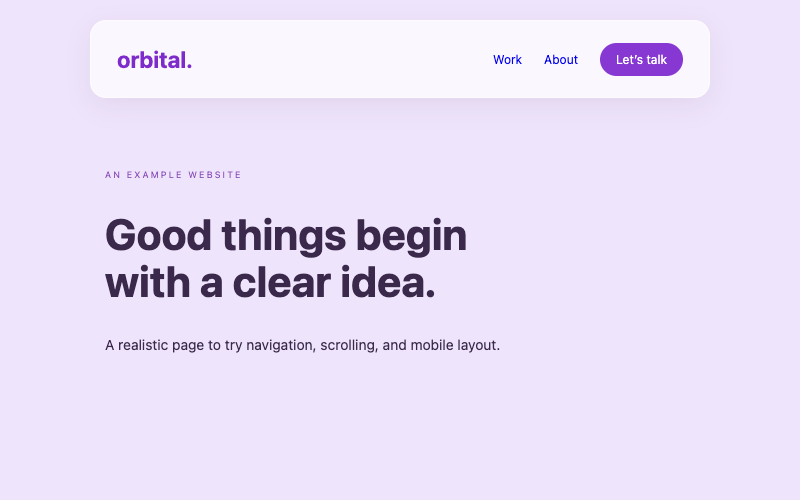
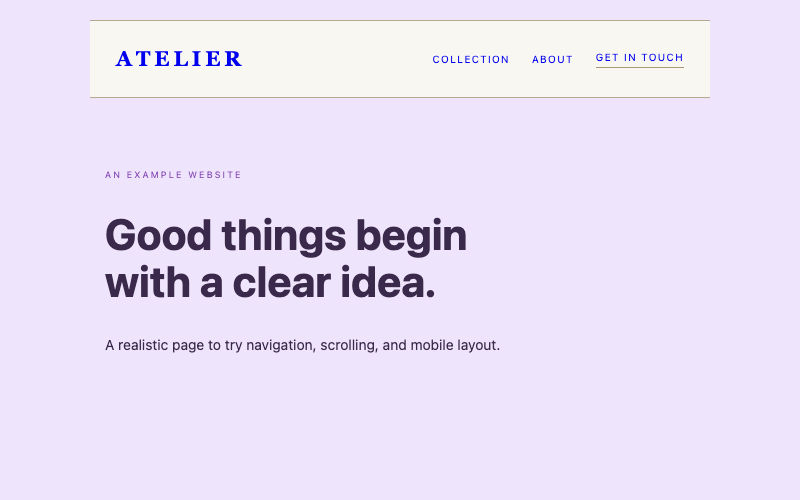
The downloadable glassmorphism header and static minimalist header include a block-header.html fragment wrapped as a Custom HTML block. That is a starting point, not a universal import certification. Their actual import, role permissions, and theme behavior still need testing in your WordPress environment.
Install CSS and JavaScript through permitted site-wide methods. The block fragment contains markup only. A child theme can enqueue the stylesheet and script; an approved snippet tool is another possible path. Consult the CSS guide and JavaScript guide.
Preserve real navigation and identity
The examples use static links. Replace their URLs and labels with real destinations. A static anchor list does not automatically reflect dashboard menu edits. If you prefer WordPress-managed navigation, use a Navigation block or a deliberate dynamic adaptation, then ensure the design and disclosure script match its actual markup.
Replace the demonstration brand with your identity. Include a meaningful image alternative if you use a logo image, and reserve its dimensions. Keep a semantic navigation label and preserve the theme’s skip-link behavior. Additional CSS alone cannot create those elements or replace the header structure.
Verify template coverage
Save the Header part, then preview multiple page types. Confirm only one header appears. Test desktop, a 320-pixel viewport, keyboard navigation, open and closed mobile states, and actual destinations. Inspect both logged-in and logged-out views because the admin toolbar can affect sticky offsets.
For a sticky design, check ancestor overflow and anchor offsets. For a static design, confirm that no builder or theme wrapper remains fixed. The static-header guide explains those positioning differences.
Roll back safely
If the result is wrong, restore the saved part or backup before changing unrelated theme files. Remove the snippet’s CSS and script only when no remaining header or component uses them. Document the final part name, templates, file paths, and menu integration so later edits do not accidentally restore a duplicate header.
This repository’s browser tests do not certify real WordPress template imports. Treat your staging verification as a required integration step, especially when a host sanitizes markup or a theme supplies its own menu behavior.