How to Make a WordPress Header Static
Distinguish static, sticky, fixed, and transparent headers, then remove the actual positioning feature without leaving offsets or duplicate navigation.
Updated 2026-10-09A static header stays in normal document flow and scrolls away as the visitor moves down the page. A sticky header follows the scroll within its containing area; a fixed header stays attached to the viewport and leaves normal flow. Transparent describes a background, not a scrolling behavior. A header can be static and transparent, or sticky and solid.
Find the positioning source
Open the front-end page and inspect both the visible header and its parent wrappers. Look for position: sticky, position: fixed, a top offset, or classes that appear after scrolling. Your theme, builder, or a plugin may provide the behavior. Changing the child header alone cannot undo a sticky ancestor.
Check the relevant theme or builder setting first. A supported “sticky header” toggle is usually preferable to fighting a script that reapplies styles on every scroll. Test on staging if disabling it affects global navigation or a content spacer.
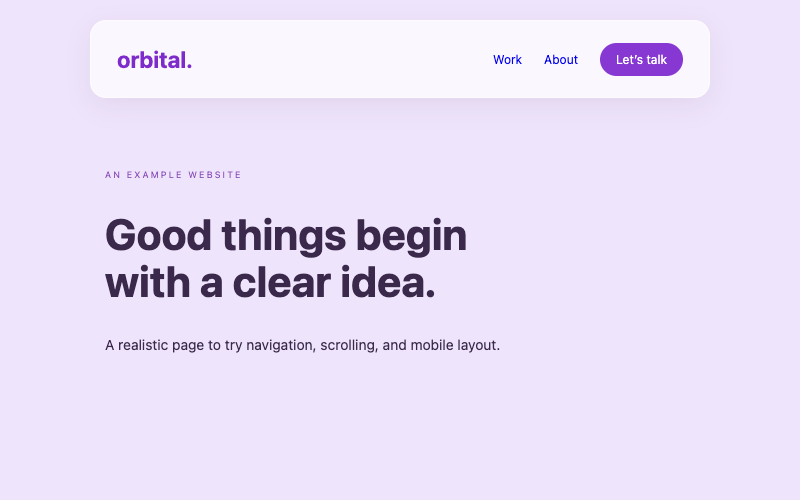
The static minimalist header is a complete normal-flow design. The glassmorphism header uses sticky positioning. Their difference is intentional rather than a missing animation.
Apply a targeted CSS change
When the header’s actual positioning comes from a stylesheet and there is no supported setting, a carefully scoped rule can set the relevant wrapper to position: static. Replace the example selector with the class you verified on your site:
/* Example selector: replace with your actual header wrapper. */
.my-verified-header-wrapper {
  position: static;
  inset: auto;
}
This is not a universal selector for WordPress. Do not target every header element or add !important blindly. Inspect which declaration wins and whether a script later overrides it. The CSS installation guide explains matching and specificity.
Remove obsolete offsets safely
A fixed header may have a separate spacer, top padding on the main content, or a script-managed height. Once the header returns to normal flow, that compensation can leave a visible gap. Find the feature that created it and disable its offset through the same supported configuration where possible.
Do not erase all page padding to remove one spacer. The theme may use that spacing for other layout needs. Compare the logged-out page with the logged-in view, because the WordPress toolbar can add another offset. Verify the change at multiple widths; mobile and desktop may use different header systems.
Block themes, classic themes, and Elementor
For a block theme, inspect the Header template part and its enclosing Group or template layout. If replacing the entire design, follow the block-theme guide. A page-level snippet cannot remove the global header.
For a classic theme, use its supported sticky setting, hook, or compatible child-theme adaptation. The classic header guide explains why an arbitrary browser fragment should not replace the document shell.
For Elementor, inspect the header template and its section/container positioning or motion settings. Global header replacement requires the applicable Theme Builder feature and display conditions. An HTML widget’s child CSS cannot neutralize a fixed parent container by itself.
Verify navigation after the change
Scroll the home page, a long article, and an internal page. The header should move away naturally without a jump or blank gap. Test actual navigation links, mobile disclosure controls, keyboard focus, and any skip link. Anchor destinations may need different scroll spacing now that a persistent header no longer covers them.
The responsive navigation component illustrates that static positioning does not remove the need for working mobile controls. The menu should still expose its state and let visitors close it with Escape.
Common misconceptions
Making a header transparent does not make it static. Removing a shadow does not change positioning. Setting top: auto alone may not reverse all fixed-layout effects. Adding a second static header below a sticky one does not replace the original.
A CSS change can restyle an existing compatible header. It cannot create the full markup and dynamic menu integration of a replacement design. Keep those tasks separate, and do not claim an unidentified theme supports a universal header snippet.
Keep a rollback
Record the original setting or rule and retain a theme backup. If disabling the feature affects another layout, restore it and investigate the actual wrapper. This repository provides browser examples and documented approaches; real theme-specific positioning still needs verification in your WordPress installation.