- You’ll build
- Before-and-After Image Slider in WordPress
- Code required
- HTML + CSS + JS
- Installation
- Theme and role dependent
On this page
Before you startHow the comparison worksInstall it in WordPressPrepare useful comparison imagesCustomize the controlTroubleshoot mismatched resultsAccessibility and performanceFrequently asked questionsCheck your installationComplete working code
The preview and download are generated from these same source files. The complete snippet requires permission to save inline styles and scripts.
<figure class="iljs-demo iljs-compare" style="--iljs-position:50%"><div class="iljs-compare-images"><img src="data:image/svg+xml,%3Csvg%20xmlns%3D%22http%3A//www.w3.org/2000/svg%22%20width%3D%22800%22%20height%3D%22500%22%20viewBox%3D%220%200%20800%20500%22%3E%3Cdefs%3E%3ClinearGradient%20id%3D%22g%22%20x2%3D%221%22%20y2%3D%221%22%3E%3Cstop%20stop-color%3D%22%23fae9ce%22/%3E%3Cstop%20offset%3D%221%22%20stop-color%3D%22%23ab652d%22/%3E%3C/linearGradient%3E%3C/defs%3E%3Crect%20width%3D%22800%22%20height%3D%22500%22%20fill%3D%22url%28%23g%29%22/%3E%3Ccircle%20cx%3D%22570%22%20cy%3D%22185%22%20r%3D%22110%22%20fill%3D%22%23e8d7ff%22/%3E%3Cpath%20d%3D%22M0%20425%20250%20140%20485%20500H0%22%20fill%3D%22%2334214f%22/%3E%3Cpath%20d%3D%22m270%20500%20225-260%20305%20260%22%20fill%3D%22%23e6b66e%22/%3E%3Ccircle%20cx%3D%22120%22%20cy%3D%22110%22%20r%3D%2235%22%20fill%3D%22%23fff%22%20opacity%3D%22.6%22/%3E%3C/svg%3E" width="800" height="500" alt="Warm version of an abstract geometric composition"/><img class="iljs-compare-after" src="data:image/svg+xml,%3Csvg%20xmlns%3D%22http%3A//www.w3.org/2000/svg%22%20width%3D%22800%22%20height%3D%22500%22%20viewBox%3D%220%200%20800%20500%22%3E%3Cdefs%3E%3ClinearGradient%20id%3D%22g%22%20x2%3D%221%22%20y2%3D%221%22%3E%3Cstop%20stop-color%3D%22%23dcb9ff%22/%3E%3Cstop%20offset%3D%221%22%20stop-color%3D%22%236634b0%22/%3E%3C/linearGradient%3E%3C/defs%3E%3Crect%20width%3D%22800%22%20height%3D%22500%22%20fill%3D%22url%28%23g%29%22/%3E%3Ccircle%20cx%3D%22570%22%20cy%3D%22185%22%20r%3D%22110%22%20fill%3D%22%23e8d7ff%22/%3E%3Cpath%20d%3D%22M0%20425%20250%20140%20485%20500H0%22%20fill%3D%22%2334214f%22/%3E%3Cpath%20d%3D%22m270%20500%20225-260%20305%20260%22%20fill%3D%22%23ae80e1%22/%3E%3Ccircle%20cx%3D%22120%22%20cy%3D%22110%22%20r%3D%2235%22%20fill%3D%22%23fff%22%20opacity%3D%22.6%22/%3E%3C/svg%3E" width="800" height="500" alt="Cool purple version of the same geometric composition"/><span class="iljs-compare-line" aria-hidden="true"></span><span class="iljs-compare-label iljs-left">Warm</span><span class="iljs-compare-label iljs-right">Cool</span></div><label>Move the comparison boundary <input type="range" min="0" max="100" value="50" aria-label="Comparison boundary percentage"/></label><output aria-live="polite">50%</output></figure>
/* Change the values here, keeping the iljs- prefix to avoid theme conflicts. */
.iljs-demo { --iljs-accent:#9235f6; --iljs-radius:18px; font-family:system-ui,sans-serif; color:#242038; width:min(620px,100%); margin:auto; }
.iljs-demo button,.iljs-demo a { font:inherit; }
.iljs-demo button:focus-visible,.iljs-demo a:focus-visible,.iljs-demo input:focus-visible,.iljs-demo summary:focus-visible { outline:3px solid #c491ff; outline-offset:4px; }
.iljs-compare { max-width:500px; }
.iljs-compare-images { position:relative;overflow:hidden;border-radius:var(--iljs-radius); }
.iljs-compare-images img { display:block;width:100%;height:auto; }
.iljs-compare-images .iljs-compare-after { position:absolute;inset:0;clip-path:inset(0 0 0 var(--iljs-position)); }
.iljs-compare-line { position:absolute;left:var(--iljs-position);top:0;bottom:0;width:3px;background:#fff;transform:translateX(-50%);pointer-events:none; }
.iljs-compare-label { position:absolute;top:12px;background:#171226b3;color:#fff;padding:5px 9px;border-radius:5px;font-size:11px; }
.iljs-left{left:12px}.iljs-right{right:12px}
.iljs-compare label { display:block;margin-top:18px;font-size:12px; }
.iljs-compare input { width:100%;accent-color:var(--iljs-accent);display:block;margin-top:12px; }
.iljs-compare output { font-size:11px;color:#7b648d; }
(() => {
 const init=()=>document.querySelectorAll('.iljs-compare').forEach(root=>{
  if(root.dataset.iljsReady)return;root.dataset.iljsReady='true';const input=root.querySelector('input');const output=root.querySelector('output');
  input.addEventListener('input',()=>{const value=Math.max(0,Math.min(100,Number(input.value)));root.style.setProperty('--iljs-position',value+'%');output.textContent=value+'%';});
 });document.readyState==='loading'?document.addEventListener('DOMContentLoaded',init,{once:true}):init();
})();
<figure class="iljs-demo iljs-compare" style="--iljs-position:50%"><div class="iljs-compare-images"><img src="data:image/svg+xml,%3Csvg%20xmlns%3D%22http%3A//www.w3.org/2000/svg%22%20width%3D%22800%22%20height%3D%22500%22%20viewBox%3D%220%200%20800%20500%22%3E%3Cdefs%3E%3ClinearGradient%20id%3D%22g%22%20x2%3D%221%22%20y2%3D%221%22%3E%3Cstop%20stop-color%3D%22%23fae9ce%22/%3E%3Cstop%20offset%3D%221%22%20stop-color%3D%22%23ab652d%22/%3E%3C/linearGradient%3E%3C/defs%3E%3Crect%20width%3D%22800%22%20height%3D%22500%22%20fill%3D%22url%28%23g%29%22/%3E%3Ccircle%20cx%3D%22570%22%20cy%3D%22185%22%20r%3D%22110%22%20fill%3D%22%23e8d7ff%22/%3E%3Cpath%20d%3D%22M0%20425%20250%20140%20485%20500H0%22%20fill%3D%22%2334214f%22/%3E%3Cpath%20d%3D%22m270%20500%20225-260%20305%20260%22%20fill%3D%22%23e6b66e%22/%3E%3Ccircle%20cx%3D%22120%22%20cy%3D%22110%22%20r%3D%2235%22%20fill%3D%22%23fff%22%20opacity%3D%22.6%22/%3E%3C/svg%3E" width="800" height="500" alt="Warm version of an abstract geometric composition"/><img class="iljs-compare-after" src="data:image/svg+xml,%3Csvg%20xmlns%3D%22http%3A//www.w3.org/2000/svg%22%20width%3D%22800%22%20height%3D%22500%22%20viewBox%3D%220%200%20800%20500%22%3E%3Cdefs%3E%3ClinearGradient%20id%3D%22g%22%20x2%3D%221%22%20y2%3D%221%22%3E%3Cstop%20stop-color%3D%22%23dcb9ff%22/%3E%3Cstop%20offset%3D%221%22%20stop-color%3D%22%236634b0%22/%3E%3C/linearGradient%3E%3C/defs%3E%3Crect%20width%3D%22800%22%20height%3D%22500%22%20fill%3D%22url%28%23g%29%22/%3E%3Ccircle%20cx%3D%22570%22%20cy%3D%22185%22%20r%3D%22110%22%20fill%3D%22%23e8d7ff%22/%3E%3Cpath%20d%3D%22M0%20425%20250%20140%20485%20500H0%22%20fill%3D%22%2334214f%22/%3E%3Cpath%20d%3D%22m270%20500%20225-260%20305%20260%22%20fill%3D%22%23ae80e1%22/%3E%3Ccircle%20cx%3D%22120%22%20cy%3D%22110%22%20r%3D%2235%22%20fill%3D%22%23fff%22%20opacity%3D%22.6%22/%3E%3C/svg%3E" width="800" height="500" alt="Cool purple version of the same geometric composition"/><span class="iljs-compare-line" aria-hidden="true"></span><span class="iljs-compare-label iljs-left">Warm</span><span class="iljs-compare-label iljs-right">Cool</span></div><label>Move the comparison boundary <input type="range" min="0" max="100" value="50" aria-label="Comparison boundary percentage"/></label><output aria-live="polite">50%</output></figure>

<style>
/* Change the values here, keeping the iljs- prefix to avoid theme conflicts. */
.iljs-demo { --iljs-accent:#9235f6; --iljs-radius:18px; font-family:system-ui,sans-serif; color:#242038; width:min(620px,100%); margin:auto; }
.iljs-demo button,.iljs-demo a { font:inherit; }
.iljs-demo button:focus-visible,.iljs-demo a:focus-visible,.iljs-demo input:focus-visible,.iljs-demo summary:focus-visible { outline:3px solid #c491ff; outline-offset:4px; }
.iljs-compare { max-width:500px; }
.iljs-compare-images { position:relative;overflow:hidden;border-radius:var(--iljs-radius); }
.iljs-compare-images img { display:block;width:100%;height:auto; }
.iljs-compare-images .iljs-compare-after { position:absolute;inset:0;clip-path:inset(0 0 0 var(--iljs-position)); }
.iljs-compare-line { position:absolute;left:var(--iljs-position);top:0;bottom:0;width:3px;background:#fff;transform:translateX(-50%);pointer-events:none; }
.iljs-compare-label { position:absolute;top:12px;background:#171226b3;color:#fff;padding:5px 9px;border-radius:5px;font-size:11px; }
.iljs-left{left:12px}.iljs-right{right:12px}
.iljs-compare label { display:block;margin-top:18px;font-size:12px; }
.iljs-compare input { width:100%;accent-color:var(--iljs-accent);display:block;margin-top:12px; }
.iljs-compare output { font-size:11px;color:#7b648d; }


</style>
<script>
(() => {
 const init=()=>document.querySelectorAll('.iljs-compare').forEach(root=>{
  if(root.dataset.iljsReady)return;root.dataset.iljsReady='true';const input=root.querySelector('input');const output=root.querySelector('output');
  input.addEventListener('input',()=>{const value=Math.max(0,Math.min(100,Number(input.value)));root.style.setProperty('--iljs-position',value+'%');output.textContent=value+'%';});
 });document.readyState==='loading'?document.addEventListener('DOMContentLoaded',init,{once:true}):init();
})();

</script>Before you start
Use two pictures of the same subject with matching dimensions and alignment. Different camera angles make the dividing line misleading, even when the code is technically correct. Upload both to WordPress first, then note their URLs and intrinsic dimensions. The Image zoom guide discusses suitable image sizing and alternative text if you need those basics.
How the comparison works
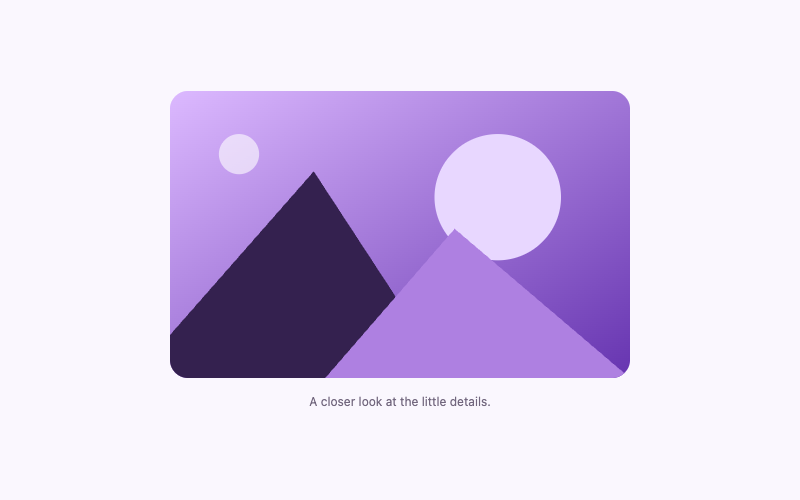
The first image determines the frame’s natural dimensions. The second sits absolutely over it and is clipped by clip-path: inset. The --iljs-position variable moves the left clipping boundary. A narrow decorative line uses the same position, so it stays aligned with the reveal edge.
At the default value of 50, the first picture appears on the left and the second on the right. Moving the range value toward zero reveals more of the cool picture; moving toward 100 reveals more of the warm picture. The visible percentage reports the boundary position, rather than claiming to measure the quality of either version.
The JavaScript handles the range’s input event. It converts the value to a number, bounds it between zero and 100, writes the CSS variable, and updates the output. Each .iljs-compare root has its own input and output, so separate comparisons can coexist without looking up a single global ID. Initialization is guarded to avoid duplicate listeners.
Install it in WordPress
- Create a draft page and insert one Custom HTML block for the comparison. Paste the supplied markup, including both images, the label, range input, and output.
- Replace the two
srcvalues with your Media Library URLs. Update both alternative descriptions and the Warm/Cool labels to accurately describe your comparison. - Change the width and height attributes to the real shared dimensions. Both images must have the same ratio for the overlay to line up.
- Install the CSS through your available custom CSS interface. Keep the
.iljs-comparescope so the overlay rule does not affect other images. - Install the JavaScript through a permitted script path. Use the WordPress JavaScript setup guide if the script disappears after saving.
- Preview the front end. Move the slider to zero, 50, and 100, then operate it with a keyboard before publishing.
Block themes and classic themes can use the same page-level structure. Elementor users can put the HTML into an HTML widget and install the styles and behavior using available permitted interfaces. WordPress 7.0’s CSS and JavaScript panels require unfiltered_html. Restricted WordPress.com or lower-permission accounts may need administrator support; the standalone download does not prove those accounts can save an inline script.
Prepare useful comparison images
Crop and align the images before uploading. Match the horizon, object position, and camera perspective if the comparison is photographic. Set meaningful labels such as Original and Edited, rather than vague Before and After labels that imply an unverified improvement. If the result depends on a particular process, explain that in nearby text.
For responsive sources, provide matching srcset and sizes attributes for both pictures. Choose variants with the same aspect ratio at each size. The browser may otherwise load a different crop for one side and make alignment fail only on phones. The default example uses embedded SVGs to keep its download self-contained; you do not need to keep that data URL format for WordPress media.
A comparison is a different use case from a hover zoom. If readers only need to inspect one picture more closely, the scoped zoom effect is simpler and removes the need for JavaScript.
Customize the control
Change --iljs-radius to make the image frame softer or square. The accent variable sets the range control’s native accent color. Native slider styling varies by browser, so do not depend on a pixel-identical thumb shape. The control remains usable without recreating a slider from pointer events.
To start at a different boundary, update all three initial values together: the HTML’s --iljs-position, the range’s value, and the output text. Keeping these synchronized avoids a mismatch before the first input event. Use descriptive labels near each side, but avoid placing labels over faces or other important image content.
If you place the comparison in an interactive tabs component, confirm that its input remains reachable when its panel opens. The widget should not depend on measuring a hidden element’s size; this CSS-based layout avoids that common initialization problem.
Troubleshoot mismatched results
The dividing line moves but the pictures look identical. Both src values may point to the same image, or WordPress caching may still return the old file. Open each URL independently and verify its content.
The overlay shifts vertically. The two files may have different ratios, or a theme rule may add margins to nested images. Restore matching dimensions and inspect the scoped image rules.
The slider changes its number but not the reveal. Confirm that .iljs-compare-after is on the second image and that the CSS variable name matches exactly. A renamed class in HTML also needs an equivalent CSS change.
The control never updates anything. Check that the script was installed and that the saved markup still contains the range input. Read the general installation guide before changing unrelated theme files.
Accessibility and performance
The input is a native range with an accessible name. Arrow keys adjust it in ordinary browser behavior, and touch users can drag the thumb. Do not remove the label to imitate a purely visual comparison. The output provides visible feedback, while the images keep separate alternative descriptions.
No continuous animation or timer is needed. Two full-size photographs can still be expensive, so compress and resize them appropriately. The decorative line uses pointer-events: none. It cannot block the actual input, which sits below the image rather than relying on a difficult-to-grab overlay handle.
Frequently asked questions
Can visitors drag directly on the picture?
This version deliberately uses a standard range control below it. Dragging the image itself would need extra pointer handling and keyboard-equivalent controls. Keep the native slider unless that added interaction is useful and tested.
What happens without JavaScript?
The initial 50/50 comparison stays visible, but the range cannot update the CSS boundary. A static comparison can omit the input and output. Do not present an inactive slider as a completed interactive feature.
Is this suitable for product claims?
Only if the images and accompanying explanation are accurate. The code does not validate a transformation, medical result, or commercial promise.
Check your installation
Verify alignment at all three boundary positions, keyboard operation, descriptive labels, and narrow-screen sizing. Compare the original standalone example with your customized image sources to isolate a content problem from an installation problem.